
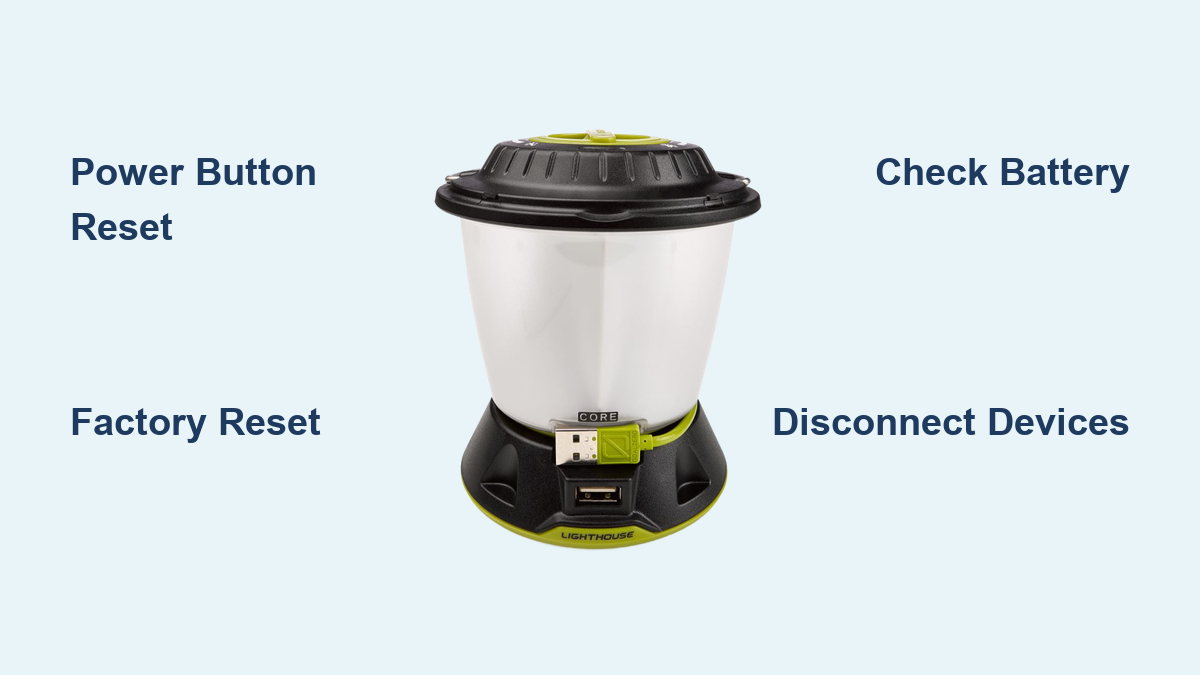
Are you frustrated because your Goal Zero Lighthouse Core is stuck on and won’t turn off, even after pressing the power button repeatedly? It’s a common issue, and often a simple reset can get it working again. This article will walk you through the quick fix, and then dive deep into a comprehensive troubleshooting guide to resolve the problem entirely.
This guide will cover everything from basic troubleshooting like checking the button functionality, to more advanced solutions like resetting the unit, and understanding potential software glitches. We’ll also cover preventative measures to avoid this issue in the future. By the end of this article, you’ll be equipped with the knowledge to get your Lighthouse Core functioning as intended, and enjoying reliable light when you need it most.
Common Causes of Goal Zero Lighthouse Core Not Turning Off
Several factors can cause your Goal Zero Lighthouse Core to remain stubbornly illuminated. Here’s a breakdown of the most frequent culprits:
- Button Malfunction: The power button itself might be faulty, failing to register presses.
- Software Glitch: A temporary software bug within the Lighthouse Core’s operating system can sometimes lock the device in an ‘on’ state.
- Firmware Issue: Outdated or corrupted firmware can lead to unexpected behavior, including the inability to power down.
- Low Battery/Charging Issues: In some cases, a very low battery or a problem with the charging circuit can interfere with the power button’s function.
- External Device Interference: While less common, a connected device might be sending signals that prevent proper shutdown.
How to Fix Goal Zero Lighthouse Core Not Turning Off
Here are several methods to address the issue, starting with the simplest and progressing to more involved solutions:
Method 1: Basic Power Button Reset
This is the first thing to try, as it addresses the most common cause.
Diagnosing the Issue
Ensure the button isn’t physically stuck. Press it firmly and release it to confirm it moves freely.
Fix Steps
- Firm Press: Press and hold the power button for a full 10-15 seconds. Don’t just tap it; apply sustained pressure.
- Release & Observe: Release the button and observe if the Lighthouse Core turns off.
- Repeat: If it doesn’t work the first time, repeat the process 2-3 times.
Testing
After attempting the reset, try pressing the power button again to see if it now turns the Lighthouse Core on and off as expected.
Method 2: Hard Reset (Factory Reset)

A hard reset can resolve software glitches by returning the device to its original factory settings. Warning: This will erase any custom settings you’ve made.
Diagnosing the Issue
If the basic reset doesn’t work, suspect a software issue.
Fix Steps
- Locate Reset Pin Hole: On the back of the Lighthouse Core, find the tiny reset pinhole.
- Insert Pin: Use a straightened paperclip, SIM ejector tool, or similar small, non-metallic object.
- Press & Hold: Gently press and hold the reset button inside the pinhole for 5-10 seconds.
- Release & Observe: Release the button and wait for the Lighthouse Core to restart. This may take a moment.
Testing
Once the device restarts, test the power button to confirm it now functions correctly. You may need to reconfigure your settings.
Method 3: Check Charging and Battery Status
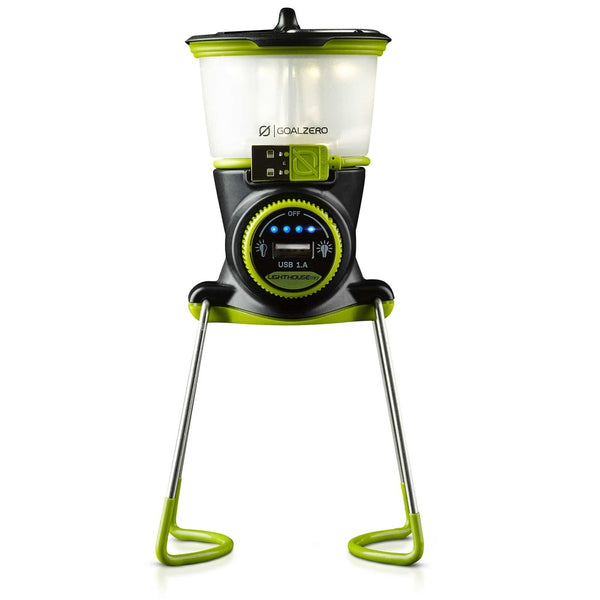
Sometimes, a charging issue can mimic a power-down problem.
Diagnosing the Issue
Connect the Lighthouse Core to a known-good power source using the provided USB cable. Observe if the charging indicator light behaves as expected.
Fix Steps
- Charge Fully: Allow the Lighthouse Core to charge fully.
- Disconnect & Test: Disconnect the charger and attempt to turn the unit off again.
- Try a Different Cable/Adapter: If charging is slow or inconsistent, try a different USB cable and wall adapter.
Testing
Verify the charging indicator light and the ability to power off after a full charge.
Method 4: Disconnect External Devices
If you have any devices connected to the Lighthouse Core (e.g., a phone via USB), disconnect them.
Diagnosing the Issue
External devices can sometimes send signals that prevent proper shutdown.
Fix Steps
- Disconnect All Devices: Unplug any USB cables or other connections.
- Attempt Power Off: Try turning the Lighthouse Core off again.
Testing
Test the power button with no external devices connected.
Prevention Tips and Maintenance Advice
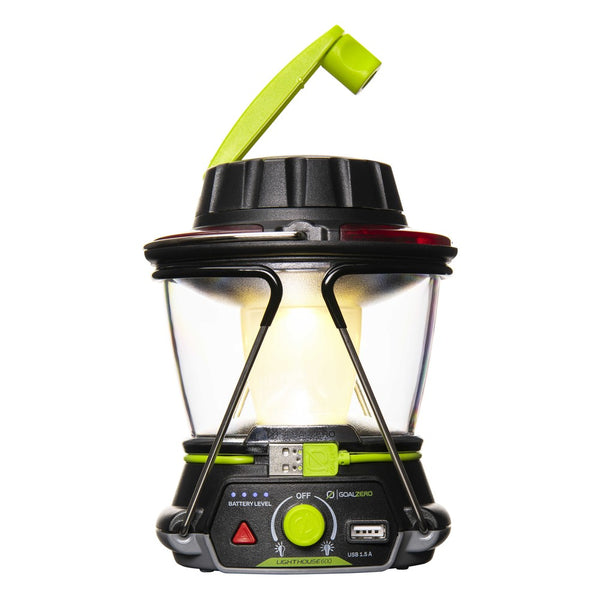
To avoid this issue in the future, consider the following:
- Firmware Updates: Regularly check for and install firmware updates through the Goal Zero app.
- Proper Storage: Store the Lighthouse Core in a cool, dry place when not in use.
- Avoid Extreme Temperatures: Don’t expose the unit to extreme heat or cold.
- Gentle Button Use: Avoid pressing the power button with excessive force.
- Regular Charging: Keep the battery topped up to prevent deep discharge.
Pro Tips for Goal Zero Lighthouse Core Users
- App Connectivity: Download the Goal Zero app to monitor battery levels, adjust settings, and receive firmware updates.
- Dimming Function: Utilize the dimming function to conserve battery life.
- Motion Sensor: Enable the motion sensor for automatic activation when movement is detected.
- Avoid Overcharging: Once fully charged, disconnect the Lighthouse Core from the power source to prevent overcharging, which can degrade battery health.
- Inspect Ports: Regularly inspect the USB ports for debris or damage.
- Software Updates are Key: Ignoring software updates is a common mistake that can lead to performance issues.
Professional Help Section
If you’ve tried all the troubleshooting steps above and your Lighthouse Core still won’t turn off, it’s time to consider professional help.
- Signs to Seek Professional Help: Consistent failure to power off, unusual noises, or visible damage.
- What to Look For: Authorized Goal Zero repair centers or experienced electronics technicians.
- Typical Cost Ranges: Repair costs can vary significantly depending on the issue, but expect to pay between $50-$150 for a repair.
- Warranty Considerations: Check your warranty status before seeking repairs. Goal Zero offers a limited warranty on their products.
FAQ Section
Q: Why is my Goal Zero Lighthouse Core always on?
A: The most common reasons are a stuck power button, a software glitch, outdated firmware, or a low battery. Try the troubleshooting steps outlined in this guide.
Q: How do I update the firmware on my Lighthouse Core?
A: Download the Goal Zero app and connect your Lighthouse Core. The app will notify you of available firmware updates and guide you through the process.
Q: Can I use a different USB cable to charge my Lighthouse Core?
A: Yes, you can, but ensure it’s a high-quality USB cable designed for data transfer and charging. Using a damaged or low-quality cable can result in slow charging or damage to the device.
Q: What does the charging indicator light mean?
A: A solid red light indicates charging, a solid green light indicates fully charged, and a flashing red light indicates an error or low battery.
Q: Is it okay to leave my Lighthouse Core plugged in all the time?
A: While it won’t damage the unit, it’s generally recommended to unplug it once it’s fully charged to prolong battery life.
Get Your Goal Zero Lighthouse Core Working Again
You now have a range of solutions to tackle the frustrating issue of your Lighthouse Core remaining powered on. From a simple button reset to a complete factory reset, you’re equipped to diagnose and solve the problem. Remember to keep your firmware updated and practice preventative maintenance to ensure reliable performance.
Have you successfully fixed your Goal Zero Lighthouse Core? Share your experience in the comments below to help other users!