
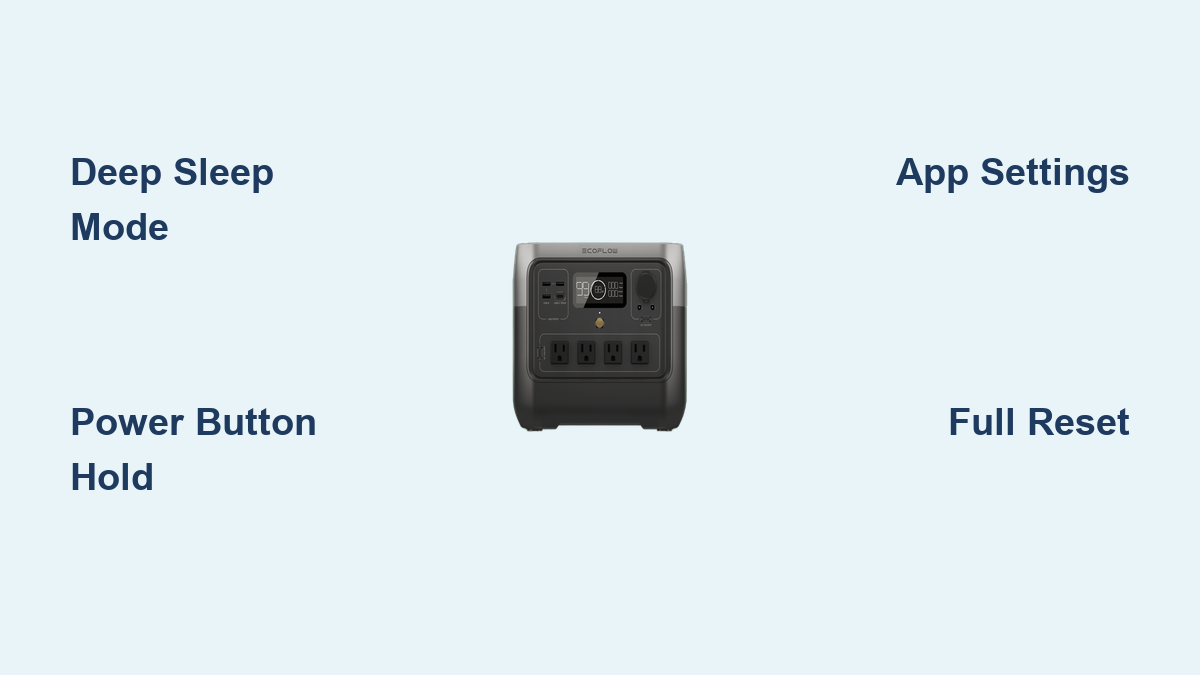
Are you frustrated trying to completely power down your EcoFlow RIVER 2 Pro? It’s a common concern – the seemingly lack of a traditional “off” switch can be confusing. A quick fix is to put the unit into deep sleep mode, which significantly reduces power consumption.
This comprehensive guide will walk you through all the ways to turn off or minimize power draw from your EcoFlow RIVER 2 Pro, from deep sleep mode to a full shutdown, and even how to address potential issues preventing complete power-down. We’ll cover the nuances of each method, ensuring you can confidently manage your power station’s energy usage.
Understanding Power Modes on the EcoFlow RIVER 2 Pro

The EcoFlow RIVER 2 Pro doesn’t have a conventional power switch. Instead, it utilizes different power-saving modes to manage energy consumption. Understanding these modes is key to achieving the desired level of shutdown.
Normal Mode
The standard operating mode where the RIVER 2 Pro is actively providing power or charging. The screen is illuminated, and the unit is responsive.
Sleep Mode
A low-power state where the screen dims, and most functions are temporarily disabled. This mode is ideal for short periods of inactivity.
Deep Sleep Mode
The most energy-efficient mode. The screen is completely off, and the unit consumes minimal power. This mode is best for long-term storage or when the RIVER 2 Pro isn’t in use for extended periods.
How to Activate Deep Sleep Mode
Deep sleep mode is the closest you’ll get to “turning off” the RIVER 2 Pro and is recommended for long-term storage.
Method 1: Through the EcoFlow App
- Connect to the App: Ensure your RIVER 2 Pro is connected to your smartphone via the EcoFlow app.
- Navigate to Settings: Open the app and select your RIVER 2 Pro. Then, go to “Settings.”
- Enable Deep Sleep: Within the Settings menu, find the “Deep Sleep” option and toggle it on.
- Confirmation: The unit will confirm the activation of Deep Sleep mode through the app and display a confirmation message on the screen before shutting down.
Method 2: Using the Buttons on the Unit
- Press and Hold: Press and hold both the Power button and the Function button simultaneously for approximately 3 seconds.
- Confirmation: The screen will display a message confirming that Deep Sleep mode has been activated, and the unit will power down.
Achieving a Near-Complete Shutdown (Full Reset)

While Deep Sleep minimizes power consumption, a full reset can be helpful for troubleshooting or ensuring a complete shutdown.
Step 1: Disconnect All Devices
Before attempting a reset, disconnect all devices connected to the RIVER 2 Pro, including AC adapters, USB devices, and DC outputs.
Step 2: Turn Off All Outputs
Ensure all outputs (AC, DC, USB) are switched off through the EcoFlow app or the buttons on the unit.
Step 3: Initiate the Reset
- Press and Hold: Press and hold the Power button for approximately 10 seconds.
- Screen Display: The screen will display a message asking if you want to reset the system.
- Confirm Reset: Confirm the reset on the screen.
- Power Down: The unit will power down completely.
Troubleshooting Shutdown Issues

If your EcoFlow RIVER 2 Pro isn’t shutting down as expected, consider these troubleshooting steps.
Issue 1: Connected Devices Preventing Shutdown
Cause: Even a small load connected to the RIVER 2 Pro can prevent it from entering Deep Sleep or completing a full reset.
Solution: Double-check that all devices are disconnected, including those that might be drawing minimal power.
Issue 2: Software Glitch
Cause: A temporary software glitch can sometimes interfere with the shutdown process.
Solution:
1. Restart: Briefly press the Power button to wake the unit, then attempt Deep Sleep mode again.
2. Firmware Update: Check for and install the latest firmware update through the EcoFlow app. This can resolve software bugs that might be causing the issue.
Issue 3: Faulty Buttons
Cause: The Power or Function buttons may be malfunctioning.
Solution: Contact EcoFlow support for assistance if the buttons aren’t responding correctly.
Pro Tips for Power Management
- Optimize App Settings: Regularly review the settings in the EcoFlow app to ensure power-saving features are enabled.
- Reduce Standby Power: Minimize the number of devices left connected to the RIVER 2 Pro when not in use.
- Storage Considerations: For long-term storage, maintain the battery level around 50% to optimize battery health.
- Temperature Control: Store the RIVER 2 Pro in a cool, dry place away from direct sunlight.
- Regular Cycling: Periodically cycle the battery by charging and discharging it to maintain its capacity.
When to Contact EcoFlow Support
- If you’ve tried all troubleshooting steps and the RIVER 2 Pro still won’t shut down.
- If you suspect a hardware malfunction.
- If you experience unexpected behavior or error messages.
- If you’re unsure about any aspect of the shutdown process.
FAQ
Q: Will the RIVER 2 Pro completely drain the battery in Deep Sleep mode?
A: No, Deep Sleep mode significantly reduces power consumption. However, the battery will still discharge very slowly over time. It’s recommended to check the battery level periodically and recharge as needed.
Q: Can I charge the RIVER 2 Pro while it’s in Deep Sleep mode?
A: Yes, you can connect a charger to the RIVER 2 Pro while it’s in Deep Sleep mode. The unit will automatically resume charging.
Q: How do I wake the RIVER 2 Pro from Deep Sleep mode?
A: Press the Power button once to wake the unit from Deep Sleep mode.
Q: Is it harmful to frequently switch between modes?
A: No, switching between modes is perfectly safe and won’t damage the battery or the unit.
Get Your EcoFlow RIVER 2 Pro Working Efficiently
By following this guide, you can confidently manage the power consumption of your EcoFlow RIVER 2 Pro, whether you’re aiming for a quick Deep Sleep or a full reset. Remember to disconnect all devices, utilize the EcoFlow app, and address any troubleshooting issues promptly.
Have you successfully turned off your EcoFlow RIVER 2 Pro? Share your experience in the comments below to help other readers!