
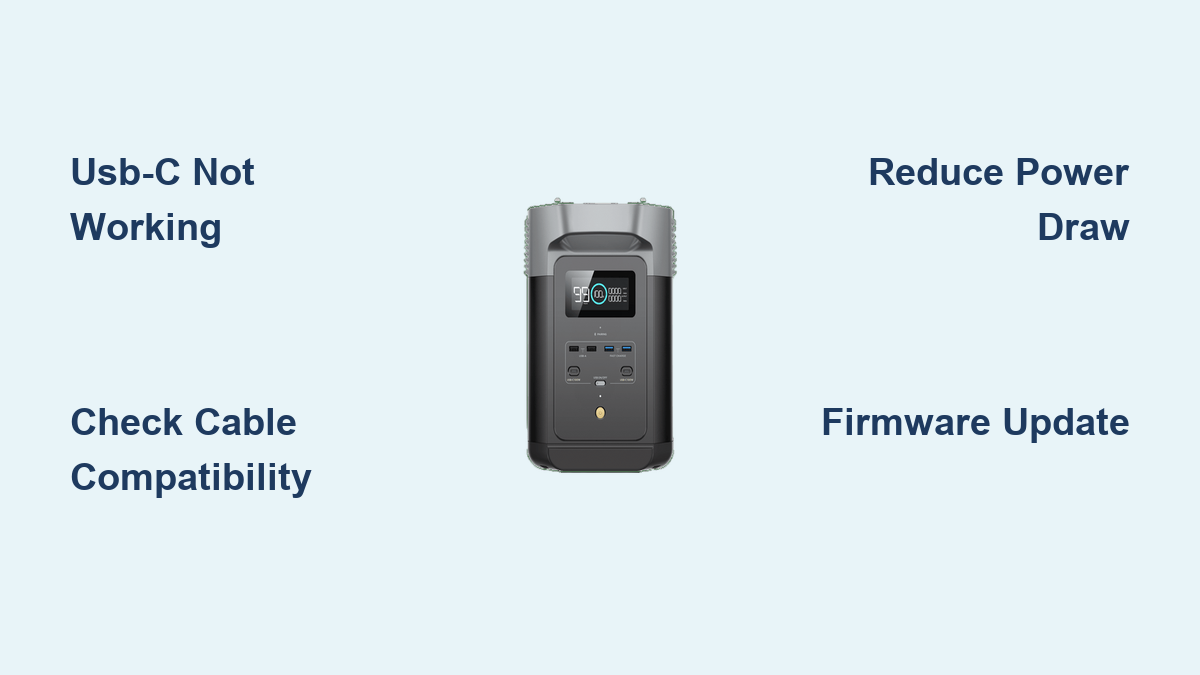
Are you frustrated that your EcoFlow power station’s USB-C port isn’t charging your devices or transferring data? It’s a common issue, and often a quick reset or simple check can get you back up and running. This guide will walk you through the most effective solutions to get your EcoFlow USB-C port functioning correctly.
This comprehensive guide goes beyond a simple reboot. We’ll cover everything from checking cable compatibility to diagnosing potential internal issues. By the end of this article, you’ll have a thorough understanding of why your EcoFlow USB-C port might not be working and the steps to resolve it, ensuring you can reliably power your devices on the go.
Common Causes of EcoFlow USB-C Not Working
Several factors can cause issues with your EcoFlow power station’s USB-C port. Here’s a breakdown of the most frequent culprits:
Cable Compatibility Issues
Not all USB-C cables are created equal. Some are designed primarily for charging, while others support data transfer and Power Delivery (PD). Using an incompatible cable is a common reason for connectivity problems.
Power Delivery (PD) Incompatibility
EcoFlow stations utilize Power Delivery for fast charging. If your device doesn’t support PD, or the cable doesn’t support the required wattage, charging may be slow, intermittent, or not work at all.
Port Overload
Attempting to draw too much power through the USB-C port can trigger a safety mechanism, temporarily disabling the port. This often happens with high-wattage devices.
Firmware Issues
Occasionally, bugs in the EcoFlow’s firmware can cause USB-C port malfunctions.
Hardware Failure
In rare cases, the USB-C port itself may be damaged or defective, requiring professional repair.
How to Fix EcoFlow USB-C Not Working
Here are several methods to troubleshoot and fix your EcoFlow USB-C port, starting with the simplest and progressing to more advanced solutions.
Method 1: Quick Cable & Device Check
This is the first and easiest step. Often, the issue is simply an incorrect cable or device.
Diagnosing the Issue
- Cable Test: Try a different, known-working USB-C cable that supports Power Delivery (PD).
- Device Test: Connect a different device to the USB-C port to see if it charges or transfers data.
- Power Source Test: If using the USB-C port for output, try plugging a different device into the wall to verify the wall outlet is working.
Fix Steps
- Ensure the USB-C cable is rated for Power Delivery (PD). Look for the PD logo on the cable or packaging.
- Try a different USB-C device that supports PD.
- Inspect the USB-C connector on both the cable and the EcoFlow port for any visible damage or debris.
Testing
After each step, attempt to charge or transfer data with your original device to see if the issue is resolved.
Method 2: EcoFlow Station Reboot & Reset
A simple reboot can often resolve temporary software glitches.
Diagnosing the Issue
Sometimes, a temporary software error can cause the USB-C port to become unresponsive.
Fix Steps
- Power Off: Turn off your EcoFlow power station completely.
- Wait: Wait for at least 30 seconds.
- Power On: Turn the EcoFlow station back on.
- Reset (If Reboot Doesn’t Work): Refer to your EcoFlow model’s manual for specific reset instructions. Typically involves holding the power button for an extended period (e.g., 10-15 seconds).
Testing
After rebooting or resetting, attempt to use the USB-C port with your device.
Method 3: Firmware Update

Outdated firmware can cause compatibility issues and malfunctions.
Diagnosing the Issue
EcoFlow regularly releases firmware updates that improve performance and fix bugs.
Fix Steps
- Download App: Download the EcoFlow app on your smartphone or tablet.
- Connect: Connect your EcoFlow station to your home Wi-Fi network via the app.
- Check for Updates: In the app, navigate to the device settings and check for firmware updates.
- Install Update: If an update is available, download and install it following the on-screen instructions. Do not interrupt the update process.
Testing
After the firmware update is complete, test the USB-C port with your device.
Method 4: Reduce Power Draw
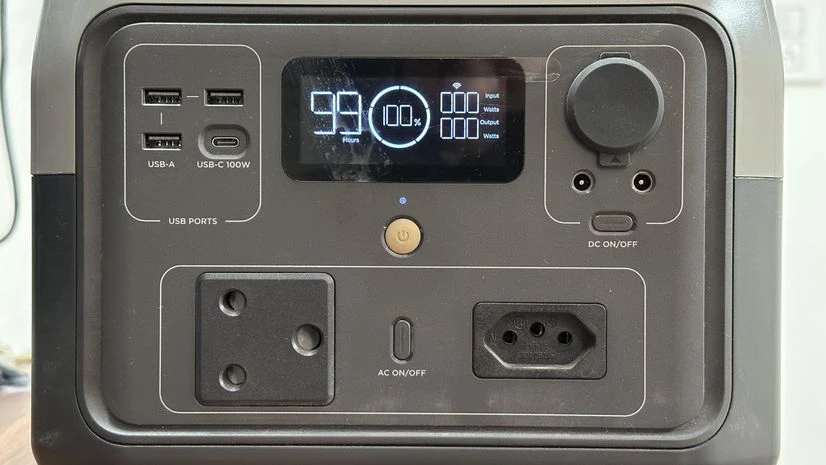)
Overloading the USB-C port can cause it to shut down.
Diagnosing the Issue
If you’re trying to charge or power a high-wattage device, the USB-C port may be overloaded.
Fix Steps
- Disconnect Devices: Disconnect all devices connected to the USB-C port.
- Try a Lower Wattage Device: Connect a low-wattage device (e.g., smartphone) to test if the port is functioning.
- Use AC Outlet: If you need to power a high-wattage device, use the AC outlets on the EcoFlow station instead.
Testing
Test the USB-C port with a lower-wattage device after disconnecting the high-wattage device.
How to Prevent Future USB-C Issues
Preventative maintenance can help avoid future issues with your EcoFlow’s USB-C port.
Use High-Quality Cables
Invest in USB-C cables specifically designed for Power Delivery (PD) and data transfer.
Avoid Overloading the Port
Be mindful of the power draw of devices connected to the USB-C port. Use AC outlets for high-wattage devices.
Keep the Port Clean
Regularly inspect the USB-C port for dust or debris and gently clean it with compressed air.
Update Firmware Regularly
Stay up-to-date with the latest firmware releases from EcoFlow.
Pro Tips
- USB-C PD Standards: Understand that USB-C PD has different profiles (e.g., 5V/3A, 9V/3A, 12V/3A, 15V/3A, 20V/5A). Ensure your device and cable support the same profile for optimal charging.
- Check EcoFlow App: The EcoFlow app often provides diagnostic information about the USB-C port’s output voltage and current.
- Avoid Adapters: Using USB-C adapters can sometimes introduce compatibility issues.
- Temperature: Extreme temperatures can affect USB-C port performance. Avoid using the port in excessively hot or cold environments.
- Warranty: Before attempting any repairs yourself, check if your EcoFlow station is still under warranty.
Professional Help
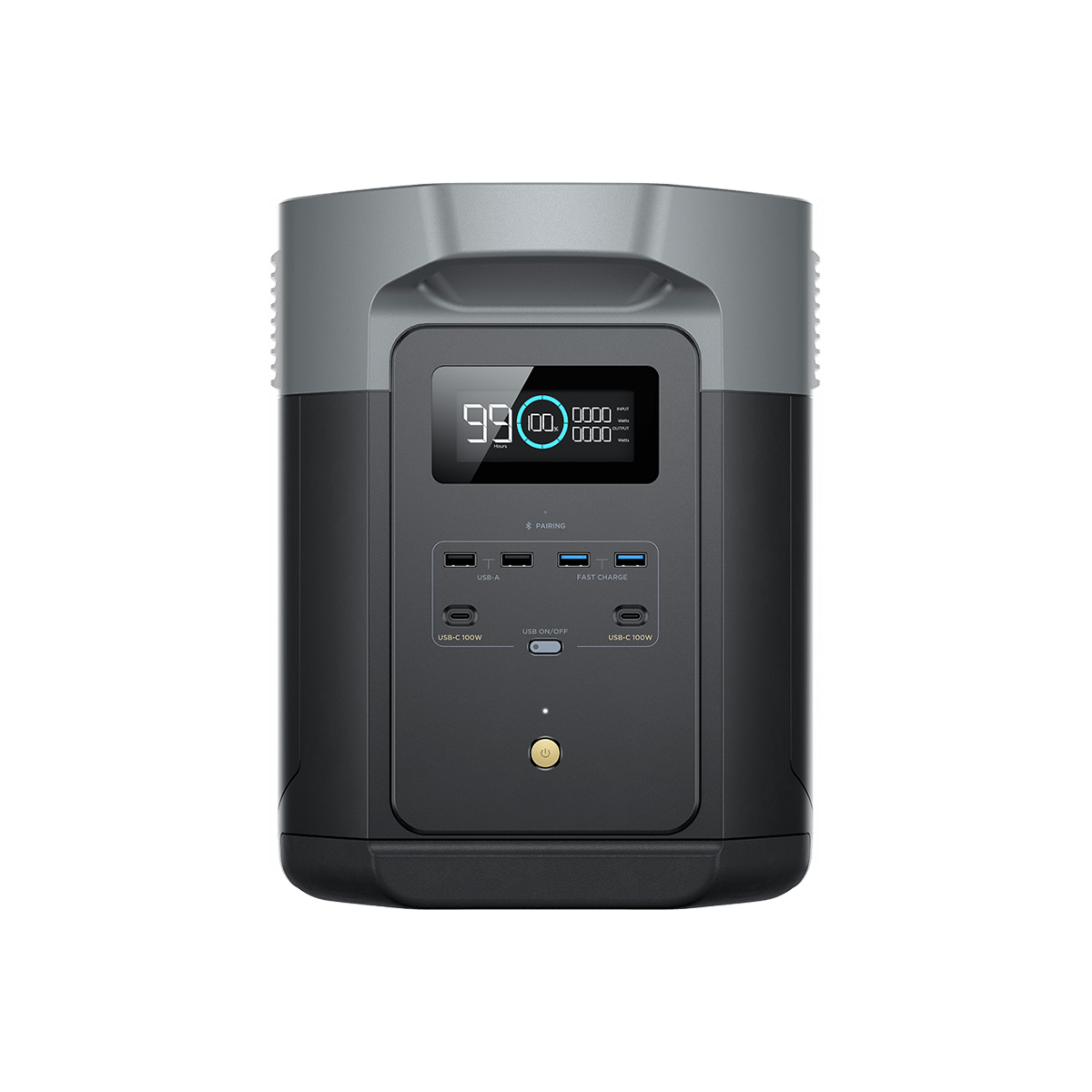
If you’ve tried all the troubleshooting steps and the USB-C port still isn’t working, it’s time to seek professional assistance.
Signs You Need Professional Help
- Visible damage to the USB-C port.
- The port is completely unresponsive, even after a reset.
- The port intermittently cuts in and out.
Finding a Service Provider
Contact EcoFlow support or an authorized EcoFlow service center.
Typical Cost Ranges
Repair costs can vary depending on the extent of the damage, but expect to pay between $50-$200 for USB-C port repair.
FAQ
Q: Why is my EcoFlow USB-C charging slowly?
A: Slow charging can be caused by an incompatible cable, a device that doesn’t support PD, or a firmware issue. Ensure you’re using a PD-compatible cable and that your device supports PD.
Q: Can I use a USB-C hub with my EcoFlow?
A: While some USB-C hubs may work, compatibility isn’t guaranteed. Some hubs may draw too much power, causing the port to shut down. It’s best to connect devices directly to the USB-C port whenever possible.
Q: What does PD stand for?
A: PD stands for Power Delivery. It’s a USB-C charging standard that allows for faster charging speeds.
Q: Where can I find the latest firmware for my EcoFlow?
A: You can find the latest firmware and download instructions on the EcoFlow website or through the EcoFlow app.
Get Your EcoFlow Working Again
Following this guide, you now have multiple solutions to fix your EcoFlow USB-C port issues:
* Cable and device compatibility checks
* Reboot and reset procedures
* Firmware update instructions
* Power draw management tips
Don’t let a malfunctioning USB-C port disrupt your power needs. Try these methods in order, and you’ll likely have your EcoFlow station back to full functionality.
Have you successfully fixed your EcoFlow USB-C port? Share your experience in the comments below to help other readers!